Thumbnails
Thumbnail Safe Zone Checker — Keep Every Pixel Visible
Overlay YouTube's desktop and mobile safe zones on any thumbnail and confirm your text, faces, and logos never get cropped or covered. Free, instant, and in your browser.
Thumbnail Safe Zone Checker
Overlay YouTube's exact safe zones on your thumbnail so no text or subjects get cut off.
Introduction
A thumbnail can be technically perfect — sharp, on-brand, perfectly composed — and still fail the moment it hits the feed, because the places where YouTube actually displays it are smaller and more cropped than the canvas you designed. On desktop the video duration badge covers the bottom corner, on mobile the same badge covers far more of the frame, and every thumbnail gets resized to fit narrow feed columns. The Thumbix Thumbnail Safe Zone Checker solves that problem by overlaying YouTube's real safe areas directly on your image. Load your thumbnail, pick the device, and see instantly whether your headline text, your face, or your logo sits inside the region that always stays visible. No guesswork, no squinting at a tiny preview — just a clear visual answer before you upload.
How to use Thumbnail Safe Zone Checker
Open the tool
Go to thumbix.site and open Thumbnail Safe Zone Checker.
Add your thumbnail
Upload a file or paste an image URL.
Pick a device context
Start with mobile — the strictest safe zone.
Review the overlay
Confirm text, faces, and logos sit inside the frame.
Fix any overhang
Move risky elements toward the center of the canvas.
Re-check and upload
Validate the final layout, then publish with confidence.
What Is This Tool?
The Thumbnail Safe Zone Checker loads any thumbnail image and draws YouTube's known safe regions on top of it, so you can see exactly which parts of your design remain visible in desktop, mobile, and search placements.
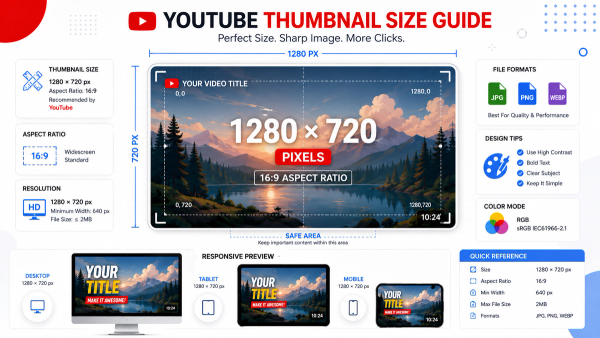
YouTube recommends a 1280×720 thumbnail, and within that canvas the visible safe zone is roughly 1235×690 on desktop and about 1235×556 on mobile. The time-stamp badge and playback controls shrink the effective area further on some surfaces. The checker turns those numbers into a visible frame you can align your design against.
Why Use This Tool?
- Your headline text stays readable. Words that cross the bottom of the frame get covered by the duration badge on mobile.
- Your face stays in the shot. YouTube's own creator guidance stresses that faces get cropped at the edges on small screens.
- Your logos survive every placement. The same upload appears in the feed, in search, and on TV — each with different crop behavior.
- You stop guessing. The safe-area overlay replaces a vague rule of thumb with a precise guide.
- It costs nothing. The check runs free in your browser with no account.
Who Should Use This Tool?
- YouTube creators who design thumbnails in Canva, Photoshop, Figma, or similar tools.
- Content teams who approve thumbnail layouts before upload and want a repeatable checklist.
- Editors who build templates and need to keep text and logos inside safe boundaries every time.
- Channel managers who audit an existing library of thumbnails for layout problems.
- Anyone who has ever uploaded a thumbnail and discovered the text was cut off on mobile.
How Does It Work?
- You upload your thumbnail or paste an image URL — processing happens in your browser.
- You choose a device context — desktop feed, mobile feed, or search results — and the checker draws the matching safe-zone frame.
- The overlay scales to your exact image, so the safe area maps to your pixel dimensions precisely.
- You read the result at a glance — anything inside the highlighted frame is safe, anything outside risks being cropped or covered.
Desktop vs. Mobile Safe Zones
Desktop and mobile are not the same canvas. On desktop, the duration badge in the lower right covers a thin strip of your thumbnail, and the feed shows the full 16:9 frame. On mobile, that same badge is proportionally much larger and sits higher up, which is why YouTube's mobile safe area is shorter than the desktop one — roughly 1235×556 inside the 1280×720 canvas.
Design for mobile first: if your headline survives the smallest safe zone, it will survive every other placement automatically.
Real-World Use Cases
- The headline rescue. A creator's thumbnail text sits at the very bottom of the canvas — the checker shows the last row of letters vanishing behind the mobile badge.
- The face crop. A vlogger's face peaks over the top-left corner, and the checker confirms it gets trimmed in narrow feed columns.
- The template fix. A team builds one master template, checks it once in the safe zone, and reuses it for every episode with confidence.
- The library audit. A channel manager runs a backlog of thumbnails through the checker and flags the ones with risky layouts.
Step-by-Step Safe Zone Check
- Step 1 — Export your thumbnail at 1280×720 so the overlay maps to real dimensions.
- Step 2 — Upload it to the checker and switch to the mobile safe zone first.
- Step 3 — Check your headline, face, and logo sit fully inside the highlighted frame.
- Step 4 — Switch to desktop and re-check — a layout can pass mobile but still lose the badge corner.
- Step 5 — Move any element that crosses a boundary, then re-export and re-check.
Best Practices
- Keep critical elements inside the center 80% of the frame — the safest region on every device.
- Raise your headline text off the bottom edge, because the badge always lives in the lower right.
- Test at real thumbnail size — what looks fine at full resolution can break at 320 pixels wide.
- Design from one reusable template so the safe-zone check becomes a one-time setup, not a per-video scramble.
Edge Cases and Gotchas
- TV screens crop differently again — the checker covers feed and search, but connected TV has its own safe-area behavior.
- Non-16:9 uploads change the math — YouTube may letterbox or crop, which shifts where the safe area sits.
- YouTube updates its interface, and badge sizes can shift — re-check your template when the app gets a major redesign.
- Cover art for playlists and Shorts follow different rules — safe-zone results apply to standard video thumbnails only.
Interpreting the Result
- Everything inside the frame is safe — design freely within it and let the overlay be your layout guide.
- Elements crossing the frame boundary are at risk — move them inward or accept that a device will cut them.
- A clean pass on mobile means a clean pass everywhere — use mobile as your strictest test and lock it in.
Frequently Paired Thumbix Workflows
The safe-zone check slots into a broader thumbnail pipeline.
- Thumbnail Resizer → Safe Zone Checker. Export at 1280×720 first, then verify the layout against the overlay.
- Thumbnail Downloader → Safe Zone Checker. Pull a competitor's thumbnail and study where they place text relative to the badge.
- Safe Zone Checker → Readability Checker. After fixing placement, confirm the text also passes contrast and legibility checks.
Conclusion
Safe zones are the difference between a thumbnail that looks designed and one that looks broken in the feed. The Thumbix Thumbnail Safe Zone Checker puts YouTube's real visible areas on your image in seconds, so your headline, face, and logo survive desktop, mobile, and search. Pair it with the Thumbnail Resizer to export the right canvas first, and with the Readability Checker to finish the job.
Common Mistakes to Avoid
- Putting headline text at the very bottom of the canvas, where the badge covers it.
- Designing only against desktop and ignoring the smaller mobile safe zone.
- Placing faces or logos right at the edge, where narrow feed columns crop them.
- Assuming one safe zone fits all placements — TV and search crop differently again.
- Never re-checking a template after YouTube changes its interface.
Frequently Asked Questions
The part of the thumbnail that stays visible across placements — the rest can be cropped by feed layouts or covered by the duration badge.
Within a 1280×720 canvas, the visible safe area is roughly 1235×690 on desktop and about 1235×556 on mobile.
Mobile feeds are narrower and the duration badge is proportionally larger, so it covers more of the frame.
No — the image is processed entirely in your browser and never leaves your device.
Mobile — if your design survives the smallest safe zone, it survives every placement.
Keep headline text out of the bottom region of the thumbnail, especially the lower right where the badge always appears.
No — Shorts cover art and playlist thumbnails follow different layout rules; the checker applies to standard video thumbnails.
Whenever YouTube ships a major interface redesign, since badge sizes and feed layouts can shift.
Yes, completely free with no account or sign-up required.
Yes — paste the image URL and study where they place text and faces relative to the safe zones.
The overlay still maps to your image, but YouTube may crop or letterbox non-16:9 uploads, which shifts the effective safe area.
Yes, the tool is fully responsive and works on phones and tablets.
Verify your thumbnail survives every placement
Overlay YouTube's real desktop and mobile safe zones on your image, confirm your key elements stay visible, and upload with confidence — free.
Try the Thumbnail Safe Zone Checker