Thumbnails
Thumbnail Resizer — Perfect 1280×720 in One Click
Resize, scale, and export any image as a YouTube-optimized thumbnail — 1280×720, under 2 MB, quality-preserving. Free, in your browser, with zero uploads.
Thumbnail Resizer
Resize any image or YouTube thumbnail to 16:9, 4:3, or vertical Shorts sizes — right in your browser.
Introduction
A thumbnail is judged before it's read. It gets roughly a fraction of a second in the feed, and if it's blurry, cropped wrong, or distorted, that moment is gone — and so is the click. YouTube officially recommends a 1280×720 resolution, which is why every professional thumbnail follows that shape. But most images aren't born in that aspect ratio. Screenshots are odd shapes, photos are the wrong size, and designs get exported at whatever the canvas happened to be. Resizing by hand means opening an editor, guessing at dimensions, fighting aspect ratios, and hoping the export doesn't crush the quality. The Thumbix Thumbnail Resizer removes all of that. Drop in any image, choose fit or fill, and get back a clean 1280×720 thumbnail that's ready for YouTube — all inside your browser, with nothing uploaded to any server.
How to use Thumbnail Resizer
Open the tool
Go to thumbix.site and open Thumbnail Resizer.
Add an image
Upload a file or paste an image URL.
Choose a fit mode
Pick Fit for bars or Fill for a full-frame crop.
Check the preview
Confirm the crop and the file-size readout.
Export the thumbnail
Download the quality JPG at 1280×720.
Upload to YouTube
Drop it into Studio and publish.
What Is This Tool?
The Thumbnail Resizer is a free in-browser tool that converts any image into the exact format YouTube recommends: 1280×720 pixels. You can upload an image or paste a URL, choose whether you want to fit the whole image inside the frame (with soft bars) or fill the frame completely (with a crop), and export the result as a high-quality JPG.
It also tracks the file size so your thumbnail stays under YouTube's 2 MB upload limit, and it warns you if the source image is too small to look crisp at 1280×720.
Why Use This Tool?
- You follow YouTube's exact spec. 1280×720 is the resolution YouTube itself recommends for sharp thumbnails.
- You avoid blurry uploads. The tool warns you when a source image is too small to scale up cleanly.
- You stay under the size limit. Live file-size tracking keeps you under YouTube's 2 MB cap.
- You keep quality control. It exports high-quality JPG instead of whatever the source editor defaults to.
- You keep images private. Everything runs in your browser — no upload, no server, no risk.
Who Should Use This Tool?
- YouTubers who create thumbnails in design tools and need a clean final export at the right resolution.
- Content teams who process multiple thumbnails a week and want a consistent spec.
- Editors who work with screenshots and photos that arrive in random sizes.
- Streamers and podcasters who turn stills into channel content.
- Anyone who has ever uploaded a blurry thumbnail and wanted a quick fix.
How Does It Work?
- It loads the image in your browser. Upload a file or paste an image URL — nothing is sent to a server.
- It offers two fit modes. "Fit" scales the whole image inside 1280×720 with soft bars; "Fill" covers the frame completely and crops the edges.
- It applies the target resolution. The canvas is set to YouTube's recommended 1280×720.
- It exports quality JPG. A high-quality export keeps the image crisp.
- It tracks the file size. You see the export size live so you can stay under 2 MB.
- It flags small sources. If your image won't scale cleanly, the tool tells you before you waste an upload.
Real-World Use Cases
- A screenshot export. An editor screenshots a scene, fills the 16:9 frame, and uploads a sharp thumbnail minutes later.
- A design-to-upload pipeline. A designer exports a 2048×1152 canvas, resizes it here to 1280×720, and keeps files under 2 MB every time.
- A series consistency. A team resizes every episode thumbnail to the same spec so the channel grid looks uniform.
- A quick fix. A creator's original thumbnail got rejected for blur — this tool fixes it in under a minute.
Best Practices
- Start big. Work from a 1280×720 (or larger) source; scaling up small images is what creates blur.
- Use "Fill" for full-bleed thumbnails. It crops instead of adding bars, which matches how YouTube displays them.
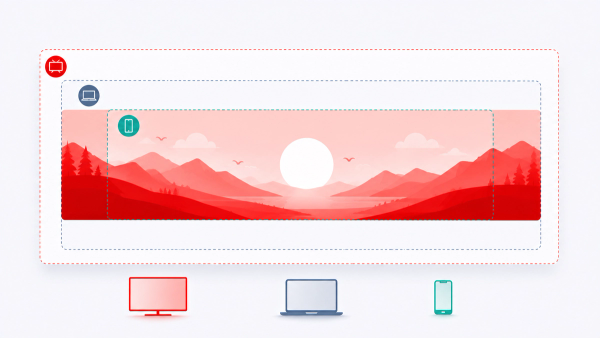
- Keep text inside safe margins. On small screens, the lower right of the thumbnail gets covered by the time-stamp chip.
- Check the export size. If you're near 2 MB, export again with slightly lower quality rather than pushing the limit.
Resolution is the invisible 10% of a thumbnail — nobody notices it when it's right, everybody notices when it's wrong.
Why 1280×720 Is the Gold Standard
YouTube recommends 1280×720 as the exact thumbnail resolution, and that number is worth understanding rather than just memorizing. At 16:9, 1280 pixels across is exactly what most viewing contexts expect: it matches the standard definition of HD video, it stays crisp on desktop, mobile, and TV feeds, and it keeps file sizes practical for fast loading.
Uploading at the recommended size matters for two reasons. First, YouTube does resize images, and upscaling a small source — say, a 640px wide screenshot — forces the platform to interpolate pixels, which produces soft, blurry thumbnails. Second, a correctly sized source means YouTube does almost no work, so the file you designed is the file your viewers see. The resizer guarantees you always hand YouTube a file that is already exactly 1280×720.
Fill vs. Fit: Which Crop Mode Should You Choose?
A source image rarely arrives at exactly 16:9, so the resizer offers two ways to reconcile it. Choosing the right one is the difference between a thumbnail that fills the frame and one that shows bars.
Fill — crop to cover
Fill scales the image up until it covers the whole 1280×720 frame, then crops the overflow from the edges. It always produces a full-bleed thumbnail with no bars, which is exactly how YouTube displays thumbnails in the feed. The trade-off: you lose the sides or top of the original, so keep your subject centered. This is the mode to use for almost every YouTube thumbnail.
Fit — contain the whole image
Fit scales the image down until it fits entirely inside the frame, leaving letterbox bars on the sides or top. Nothing is cropped, so the full image is preserved — useful when you are producing a reference copy or when every part of the original must survive. The bars, however, will not look like a YouTube thumbnail, so this mode is best for documents and previews rather than final uploads.
A Production-Ready Thumbnail Workflow
Used inside a real design process, the resizer becomes the last stop before upload. Here is a workflow that keeps quality high every time.
- Design big. Build your thumbnail canvas at 2048×1152 or 1920×1080 in your editor so text and details render crisply when scaled down.
- Design for safe margins. Keep critical elements — faces, logos, text — inside the center of the frame, because feeds crop edges and the time-stamp chip covers the lower right corner.
- Export once, resize here. Instead of hand-tweaking export settings, send the source image to the resizer and produce a guaranteed 1280×720 file.
- Check the file size. Keep the final JPG under 2 MB; if you are close to the limit, export with slightly lower quality rather than risking a rejected or slow-loading upload.
- Preview before publishing. Render the result and check it at thumbnail size — if the text is unreadable at 320px wide, it will be unreadable in search results.
Understanding File Size, Quality, and Compression
Three numbers define the output: dimensions, quality, and file size. The resizer separates them so you control each one. Dimensions are fixed at 1280×720 by the preset. Quality is the JPEG compression level, which trades a little visual sharpness for a much smaller file. File size is the result — and YouTube prefers thumbnails under 2 MB, both for upload reliability and for fast loading in the feed.
In practice, a busy thumbnail with lots of detail needs a higher quality setting than a flat, single-color design. The rule of thumb: start at a high quality level, export, check the size, and only step quality down if you need to. Because everything runs locally in your browser, you can iterate as many times as you like with zero waiting and zero uploads.
Troubleshooting Common Issues
- The result looks soft — the source was too small. Re-shoot or re-export the design at 1280×720 or larger; scaling up never recovers detail.
- The thumbnail shows bars — you used Fit on a source that does not match 16:9. Switch to Fill for a full-bleed result.
- Important content is cut off — it sat too close to the edge. Re-center the design and keep text inside the safe margins.
- The file is over 2 MB — export with a slightly lower quality setting and check the size again.
- The image looks stretched — the resizer always preserves aspect ratio through its crop or fit logic, but a very distorted source can still look off; re-export from your editor at 16:9.
Privacy and Security
The resizer is a purely local tool. Your image never leaves your device — there is no upload, no server, no account. That makes it safe for unreleased video assets, brand designs, and client work you would rather not route through a third-party service. It also means the tool works offline and never slows down, no matter how many images you process in a session.
Frequently Paired Thumbix Workflows
The resizer completes the thumbnail pipeline that starts elsewhere in the toolkit.
- Thumbnail Downloader → Resizer. Pull the HD thumbnail of any video, then re-export it at exactly 1280×720 for your own reference files.
- Video ID Extractor → Resizer. Grab the ID, build the maxresdefault URL, and process the artwork into the final upload file.
- Resizer → Engagement Rate Calculator. Redesign a rival's winning layout into your own style, then measure whether the engagement follows.
Conclusion
Thumbnails win clicks with design, but they keep them with crispness. The Thumbix Thumbnail Resizer makes the technical part trivial: any image becomes a clean 1280×720, sub-2 MB JPG in one step, entirely inside your browser. No uploads, no blur, no guesswork. Pair it with the Thumbnail Downloader when you need the source images in the first place.
Common Mistakes to Avoid
- Scaling up a tiny source — that's what creates blur; the tool warns you in advance.
- Exporting with bars when you wanted full-bleed — use Fill when the design should cover the frame.
- Ignoring the file size — stay under 2 MB or YouTube will compress your upload.
- Putting key elements at the edges — Fill mode crops them.
- Forgetting the time-stamp chip — keep important content out of the lower right.
Frequently Asked Questions
1280×720 pixels — the exact output this tool exports.
2 MB. This tool tracks your export size to keep you under it.
No. Everything runs in your browser — your image never leaves your device.
Fit scales the whole image inside the frame with soft bars; Fill covers the frame completely and crops the edges.
Fill for full-bleed thumbnails, Fit when you need the whole image visible.
Possibly — the tool warns you when a source is too small to scale cleanly.
High-quality JPG, which is what YouTube uses for thumbnails.
Yes, both a file upload and a pasted URL are supported.
Yes, completely free with no account required.
Yes, fully responsive.
The bars are part of the exported image in Fit mode — choose Fill if you want no bars.
The tool always outputs 1280×720; Fit mode preserves your image's aspect within that frame.
It scales down cleanly — larger sources actually give the best quality.
No, this tool handles the resize end-to-end.
The tool shows the size so you can re-export at slightly lower quality.
It's tuned for YouTube's spec, but the 16:9 export also suits most video platforms.
No — resize as many as you need.
Usually a low-resolution source or heavy compression; start from 1280×720 or larger to fix it.
Keep exploring
Export every thumbnail at the perfect spec
Resize any image to 1280×720 with quality-preserving export, file-size tracking, and full privacy — free in your browser.
Try the Thumbnail Resizer