Table of Contents
- Official YouTube Profile Picture Dimensions
- Why YouTube Crops Your Avatar Into a Circle
- Where Your Profile Picture Actually Appears
- File Format and Size Requirements
- How to Design a Circle-Safe Avatar
- Step-by-Step: Uploading Your Profile Picture
- Common Mistakes to Avoid
- Best Practices
- Pro Tips
- Frequently Asked Questions
- Final Thoughts
The exact YouTube profile picture size, file requirements, and how to design a logo that looks sharp inside YouTube's circular crop.
Your YouTube profile picture is the smallest piece of real estate on your channel, but it's also the most repeated one. It shows up next to every comment you post, in every search result, on every video thumbnail's channel tag, and at the top of your channel page. If it's blurry, off-center, or awkwardly cropped, it quietly undermines your branding everywhere on the platform, all at once. The good news is that getting it right is simple once you know the exact numbers YouTube expects. This guide covers the correct YouTube profile picture size, file requirements, how the circular crop actually works, and the design mistakes that make otherwise good logos look bad in that tiny circle.
Why This Topic Matters
Unlike your banner or thumbnails, your profile picture appears at a tiny size almost everywhere it's shown—often no larger than 88×88 pixels on the actual page, even though YouTube stores it at a much higher resolution. That means fine detail, small text, and thin lines in your logo can disappear entirely. Getting the size and format right isn't just a technical checkbox; it directly affects whether your brand is recognizable at a glance.
Who This Guide Is For
- Creators setting up a channel for the first time
- Anyone rebranding an existing channel with a new logo
- Designers building channel art for a client
- Multi-channel network (MCN) managers standardizing avatars across channels
Quick Answer
The official YouTube profile picture size is 800 × 800 pixels, uploaded as a JPG, PNG, BMP, or GIF (no animation), under 4MB, ideally in sRGB color space. YouTube displays this image as a circle everywhere on the platform, so your logo or photo needs enough padding around the edges to survive that crop without cutting off important details.
Official YouTube Profile Picture Dimensions
- Recommended upload size: 800 × 800 px
- Minimum accepted size: 98 × 98 px
- Aspect ratio: 1:1 (square)
- Display shape: Circle (cropped automatically)
- File formats: JPG, PNG, BMP, GIF (static only)
- Max file size: 4MB
- Color mode: RGB (not CMYK)
Even though YouTube technically accepts images as small as 98×98 pixels, you should always upload at the full 800×800 recommendation. YouTube uses this same source image across many surfaces at different sizes—some large, some tiny—and a low-resolution upload will look soft or pixelated the moment it's displayed any larger than your original file.
Why YouTube Crops Your Avatar Into a Circle
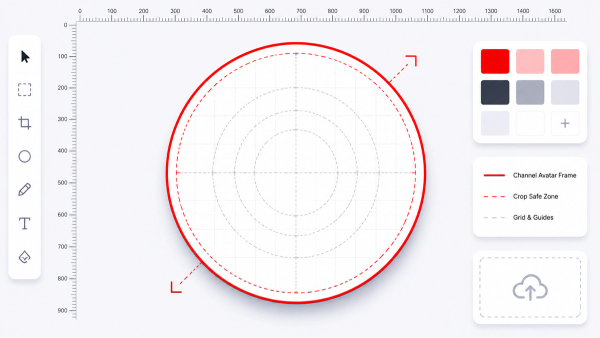
YouTube standardized on circular avatars across the platform to keep the visual language consistent with comments, community posts, and channel pages. Every profile picture you upload, regardless of its original shape, gets cropped into a circle using the center of your square image. This matters enormously for logo design. A square logo with text or icons pushed into the corners will have those corners sliced off entirely. Anything you want visible in the final avatar needs to sit inside an imaginary circle drawn within your 800×800 square.
Where Your Profile Picture Actually Appears
Your avatar shows up in more places than most creators realize:
- Your channel's homepage header, next to your channel name
- Every comment you leave on any video, on any channel
- Search results, next to your channel name
- The "About" card when someone hovers your channel in a video description
- Community posts and polls
- YouTube Shorts, next to the channel handle
- Subscription feed and notification bell alerts
- Live chat during premieres and live streams
Because it repeats in so many contexts, at wildly different display sizes, your avatar needs to work as a strong, simple, instantly recognizable mark—not a detailed illustration that only reads clearly at full size.
File Format and Size Requirements
YouTube accepts JPG, PNG, BMP, and static GIF files (animated GIFs will be flattened to a single static frame, so don't rely on animation). The maximum file size is 4MB, which is generous enough that file size is rarely the limiting factor—design quality and cropping are. Always export in RGB color mode. Files exported in CMYK (common in some print-focused design software like older versions of Adobe Illustrator) can upload with shifted, muted, or inaccurate colors, or fail to upload altogether.
How to Design a Circle-Safe Avatar
Here's the practical process for making sure your logo survives YouTube's circular crop cleanly:
- Start with an 800×800 pixel square canvas.
- Draw a circle guide that touches all four edges of the square (this represents exactly what YouTube will keep).
- Keep all essential elements inside the circle, with a small buffer inward from the circle's edge—roughly 5-10% padding—so nothing feels cramped against the crop line.
- Avoid small text entirely. Even a short word can become unreadable at the tiny sizes your avatar is displayed on comments and mobile.
- Use a bold, simple icon or initials rather than a detailed illustration. Icons with strong silhouettes (think a single letter, a simple shape, or an easily recognizable mascot) read far better at small sizes than intricate designs.
- Test at multiple sizes. Shrink your design down to 48×48 pixels on your screen and check if it's still recognizable. If it turns into a blur, simplify further.
Tip: If you already have a square logo but aren't sure how it'll look cropped, use our Thumbnail Resizer to preview and export a properly sized, circle-safe version before uploading.
Step-by-Step: Uploading Your Profile Picture
- Sign in to YouTube and go to YouTube Studio.
- Click Customization in the left sidebar, then select the Branding tab.
- Under "Picture," click the upload icon or your existing avatar.
- Select your 800×800 pixel image file from your computer.
- Use YouTube's built-in cropping tool to fine-tune positioning if needed.
- Click Done, then Publish to save your changes across the channel.
Keep in mind that, just like thumbnails, avatar updates can take some time to fully propagate across YouTube's servers. Don't be alarmed if it takes a little while to appear everywhere.
Common Mistakes to Avoid
- Uploading a rectangular logo and letting YouTube auto-crop it. This almost always cuts off important parts of the design. Always start from a proper square.
- Placing text or details near the corners. These are the first things the circular crop removes.
- Using a low-resolution image because "it's just a small icon." Your avatar appears at multiple sizes across the platform, and low-res uploads look blurry the moment they're shown larger than expected.
- Ignoring color mode. CMYK exports can shift your brand colors unexpectedly.
- Using an animated GIF expecting it to animate. YouTube will flatten it into a single frame, which may not be the frame you intended.
Best Practices
- Design on an 800×800 canvas with a visible circular safe-zone guide.
- Keep your logo simple: one strong shape, icon, or set of initials.
- Match your avatar's color palette to your banner and thumbnail style for consistent branding across the channel.
- Re-export in RGB, not CMYK, before uploading.
- Preview your avatar at small sizes (48px, 88px) before publishing.
Pro Tips
Pro Tip: If your channel name is hard to abbreviate into a clean icon, consider using a bold single letter on a solid color background. This is one of the most reliable, recognizable formats for small circular avatars, and it's why so many established brands rely on monogram-style logos for their profile pictures. Pro Tip: Keep a master version of your avatar design file (like a layered PSD or Figma file) rather than only saving the final flattened export. This makes it far easier to update your branding later without starting from scratch.
Final Thoughts
Your YouTube profile picture might be small on screen, but it's one of the most frequently seen elements of your entire channel brand. Getting the 800×800 pixel size right, respecting the circular crop, and keeping your design simple and bold will make sure your channel looks sharp and recognizable everywhere it appears—from comments to search results to Shorts.
Call to Action
Ready to check how your avatar (or a competitor's) actually looks at full resolution? Try our free YouTube Channel Logo Downloader to grab any channel's avatar in seconds, or use our Thumbnail Resizer to prep your own image for a perfect circle-safe upload.
Frequently Asked Questions
What is the exact YouTube profile picture size?
The recommended size is 800 × 800 pixels, uploaded as a square image. YouTube will display it as a circle across the platform.
Can I upload a rectangular image as my profile picture?
YouTube requires a square upload. If you upload a non-square image, you'll need to crop it to a square using YouTube's built-in tool before it can be saved.
Why does my logo look cut off after uploading?
This happens when important design elements sit too close to the corners of your square image. Since YouTube crops every avatar into a circle, anything in the corners gets removed. Redesign with a circular safe zone in mind.
What file types does YouTube accept for profile pictures?
JPG, PNG, BMP, and static GIF files are all accepted, up to a maximum file size of 4MB.
Can I use an animated GIF as my profile picture?
No. YouTube will flatten any animated GIF into a single static frame, so it won't animate on your channel.
How long does it take for a new profile picture to update everywhere?
Similar to thumbnails, avatar changes propagate across YouTube's servers gradually and can take anywhere from a few minutes to several hours to appear everywhere, including on old comments.
Does my profile picture affect SEO or search ranking?
Not directly as a ranking factor, but a clear, professional avatar improves click-through rates in search results and builds trust, which can indirectly support channel growth.
What's the minimum size YouTube will accept?
YouTube technically accepts images as small as 98 × 98 pixels, but this is far below the recommended size and will likely look blurry when displayed larger elsewhere on the platform.
Should my profile picture match my banner design?
Yes, ideally. Consistent colors and style between your avatar, banner, and thumbnails make your channel feel more professionally branded and easier to recognize at a glance.
Can I download another channel's profile picture to use as a size reference?
Yes, our YouTube Channel Logo Downloader lets you pull any public channel's avatar at full resolution, which is useful for studying sizing and design choices from channels you admire (for reference only—always design original artwork for your own brand).