Table of Contents
Every reliable way to download a YouTube channel's banner at full 2560×1440 resolution, on desktop, mobile, or with a dedicated tool.
Whether you're benchmarking a competitor's branding, building a design mood board, recovering your own lost banner file, or putting together a media kit, downloading a YouTube channel banner at full resolution is a task that comes up constantly for creators and designers alike. Unlike thumbnails, which at least show up prominently across the platform, channel banners don't have any obvious right-click-to-save option that reliably returns the full-size file. This guide covers every method for downloading YouTube channel art at its true 2560×1440 pixel resolution, from the fastest dedicated-tool approach to manual desktop and mobile workarounds.
Why This Topic Matters
A channel's banner is one of its most visually distinct branding assets, but grabbing a clean copy isn't as simple as it should be. Right-clicking the banner section of a channel page often returns nothing useful, since the banner is frequently rendered as a CSS background image rather than a standard clickable image element. That means the usual "save image as" trick that works for photos often doesn't work at all for banners, which is exactly why a dedicated approach matters.
Who This Guide Is For
- Designers researching competitor channel branding and layout choices
- Creators who lost their original banner design file and need to recover the live version
- Media kit and press page builders who need clean brand assets
- Channel managers auditing branding consistency across multiple channels
Quick Answer
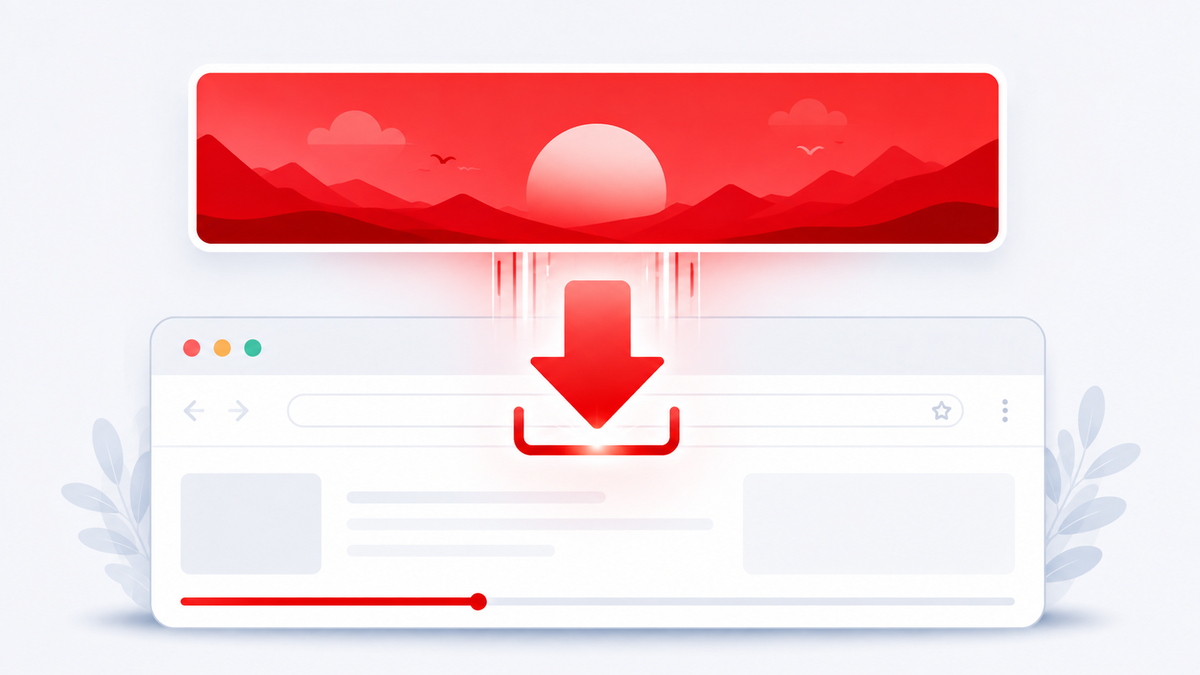
The most reliable way to download any public YouTube channel's banner at full resolution is to use a dedicated tool like our free YouTube Channel Art Downloader. Paste in the channel URL or handle, and it retrieves the banner directly from YouTube's servers at its full 2560×1440 pixel resolution. Manual browser methods also work but require digging through page source code, since banners are often background images rather than standard clickable ones.
Method 1: Using a Dedicated Channel Art Downloader
This is the fastest and most consistent method, since it bypasses the background-image problem entirely by fetching the file directly from YouTube's servers.
- Copy the URL or @handle of any public YouTube channel.
- Open our YouTube Channel Art Downloader.
- Paste the channel URL or handle into the input field.
- Click Download. The tool retrieves the banner at its original 2560×1440 pixel resolution.
- Save the file to your device.
No login, browser extension, or technical steps required, and it works the same way on desktop or mobile.
Method 2: Downloading Manually on Desktop
If you want to extract the banner manually, you'll need to go through the page's source code, since banners are typically loaded as background images rather than standard <img> tags:
- Open the channel page in your browser.
- Right-click anywhere near the banner and select Inspect (or press F12) to open developer tools.
- Use the element selector to click directly on the banner area.
- In the highlighted CSS or HTML, look for a
background-image: url(...)property or ansrcattribute containing a YouTube image URL (often fromyt3.googleusercontent.comor a similar domain). - Copy that URL and paste it into a new browser tab.
- If the URL includes a size parameter (like
=w1060-fcrop64=...), you can often adjust it to request a larger version, though this requires some trial and error depending on the exact URL format. - Once the full image loads in the browser tab, right-click and select Save image as.
This method works, but it's noticeably more technical than downloading a standard image, and URL formats can change over time as YouTube updates its infrastructure.
Method 3: Downloading on Mobile
Mobile banner downloading through developer tools isn't practical, since most mobile browsers don't offer full inspection features. The most reliable mobile options are:
- Use a dedicated downloader tool directly in your mobile browser, which works identically to the desktop version.
- Alternatively, request the "Desktop site" version of the channel page in your mobile browser's settings, then attempt the manual inspection method, though this is clunky on a small screen.
For nearly everyone, using a dedicated tool on mobile is significantly faster and more reliable than trying to replicate the desktop developer tools process on a phone.
Why Right-Click Often Doesn't Work on Banners
Unlike profile pictures and thumbnails, which are usually loaded as standard image elements, YouTube frequently renders channel banners as CSS background images. Browsers don't offer a direct "save image" option for background images the way they do for regular <img> elements, which is why right-clicking a banner often gives you no image-saving option at all, or only lets you save a screenshot of the visible page rather than the actual source file. This is the core reason a dedicated downloader tool is so much more reliable for banners specifically: it retrieves the actual file from YouTube's servers rather than depending on how the browser happens to render the page.
Common Mistakes to Avoid
- Trying to right-click and save directly, which often does nothing useful for background-image banners.
- Taking a screenshot instead of downloading the real file, which results in a lower-resolution, potentially distorted copy.
- Forgetting that visible banner content is cropped differently across devices, so a screenshot from your phone won't capture the full 2560×1440 canvas anyway.
- Reusing a downloaded banner as your own without permission, which can raise copyright concerns.
Best Practices
- Always confirm the downloaded file's resolution is close to 2560×1440 pixels before using it for design reference.
- Use a dedicated tool for consistency, especially when researching many channels at once.
- Organize downloaded reference banners by channel name and date if you're tracking rebrands or trends over time.
- Treat downloaded banners strictly as reference material unless you have explicit permission to reuse them.
Pro Tips
Pro Tip: When researching competitor branding, download banners from both top-performing and mid-tier channels in your niche. Comparing the two often reveals which design choices actually correlate with a more established, higher-production-value feel versus which ones are just personal preference. Pro Tip: Pair a downloaded banner with the same channel's profile picture (using our Channel Logo Downloader) to study how creators coordinate their full branding system, not just one asset in isolation.
Is It Legal to Download a Channel Banner?
Viewing and downloading a publicly displayed image for personal research, reference, or inspiration is generally not a legal problem, since the content is already publicly visible on the platform. That said, actually reusing someone else's banner artwork—whether directly or as a close copy—in your own published content can raise copyright concerns, particularly if the design includes original illustration, custom typography, or licensed elements. Always use downloaded banners as reference only, and create original artwork for your own channel.
Final Thoughts
Channel banners are trickier to download than most other YouTube images because of how they're technically rendered on the page, but that doesn't mean it takes any special expertise to grab one. A dedicated tool sidesteps the background-image problem entirely and gets you a full 2560×1440 pixel file in seconds, while the manual developer tools method remains a solid backup option if you ever need it.
Call to Action
Skip the developer tools and grab any channel's banner in one click with our free YouTube Channel Art Downloader. No login, no software, full resolution every time.
Frequently Asked Questions
Can I download any public channel's banner?
Yes, as long as the channel is public and has a banner set, it can be downloaded using the methods in this guide, since it's already publicly displayed on the platform.
What resolution will I get when downloading a channel banner?
Most channel banners are stored at up to 2560 × 1440 pixels, which is the resolution a dedicated downloader tool will typically return.
Why doesn't right-clicking the banner give me a "save image" option?
Channel banners are frequently rendered as CSS background images rather than standard image elements, and browsers don't offer a direct save option for background images the way they do for regular photos.
Is there an easier way than using browser developer tools?
Yes, using a dedicated tool like our YouTube Channel Art Downloader retrieves the full-resolution file automatically, without requiring any manual inspection of the page's source code.
Can I recover my own banner if I lost the original design file?
Yes, these same methods work for your own channel and are a common way to recover a usable copy of your current live banner if your original design files were lost.
Does a channel owner get notified if I download their banner?
No. Downloading a publicly visible image does not send any notification to the channel owner.
Can I use a downloaded banner in my own channel or video?
You can reference it for inspiration or discussion, but reusing someone else's original banner artwork directly, without permission, can raise copyright issues.
Do banners look different depending on which device I download them for reference on?
The downloaded file itself is the same full-resolution image regardless of device, but remember that YouTube crops it differently depending on the screen it's displayed on, so what you see live on-screen may not represent the full canvas.
Why do some banner URLs contain strange parameters?
YouTube's image URLs often include cropping and sizing parameters used to serve the right version for different devices. A dedicated downloader tool handles this automatically so you don't need to decode the URL structure yourself.
Can I download profile pictures the same way?
Yes, though the process differs slightly since avatars are typically standard image elements rather than background images. See our guide on how to download a YouTube profile picture for that full walkthrough.